


Overview
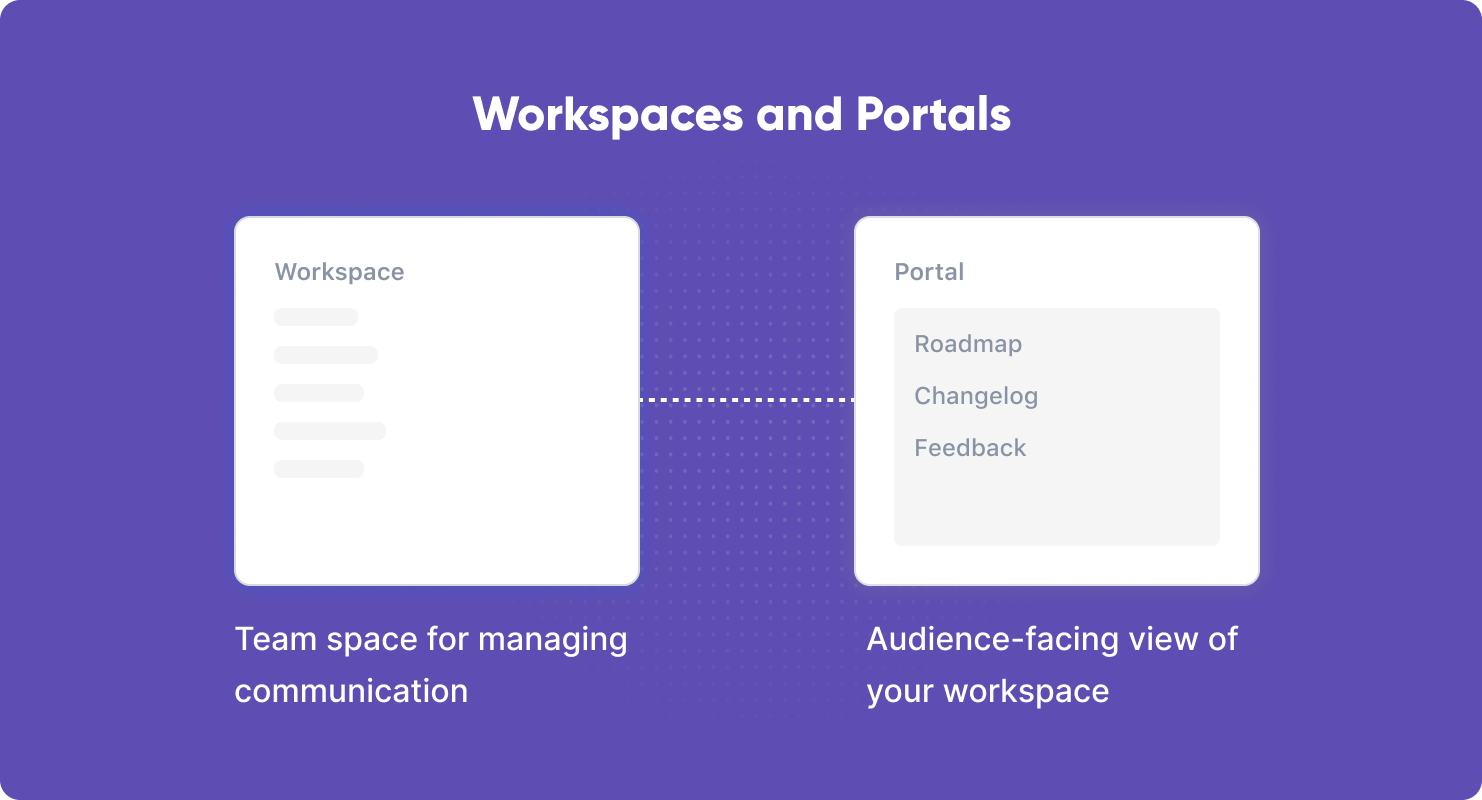
Section titled “Overview”Workspaces are your internal control center. This is where your team creates roadmap views, writes release notes, and manages feedback — all directly linked to your Jira projects. You decide what gets published and how it’s presented.
Portals are the external-facing side of Hub. They’re where you share the content created in a workspace with your customers or stakeholders. Each portal represents a specific communication channel — for a product, team, or even a select group of customers.
A single workspace can be linked to one or many projects, giving you the flexibility to keep communication independent of how your teams or projects are structured.
Portals can be shared via the Product Hub, or embedded directly into your website or app for seamless access.
Workspace settings
Section titled “Workspace settings”Uploading a logo helps personalize your workspace and create a consistent brand identity. Your logo will appear in your internal workspace as well as on your portal.
Workspace name
Section titled “Workspace name”Customize the name of your workspace. Make sure the name is descriptive and clearly identifies what updates you are aiming to communicate. Choose a name for your workspace that is descriptive and clearly reflects the updates you intend to communicate. Common examples include product names or team names. A well-chosen name helps team members quickly identify the workspace’s purpose and focus. names are product or team names.
Workspace description
Section titled “Workspace description”Provide a brief description to help users understand the purpose of this workspace. This description appears both internally and externally, helping stakeholders and customers quickly grasp the focus and content of the portal.
Linked projects
Section titled “Linked projects”Workspaces are closely connected to Projects. Each workspace must have at least one linked project, but can be linked to multiple projects.
Linked projects do more than just create a connection; they determine:
- Access rights to restricted portals (see below)
- The projects used for filters
- Which projects are displayed in the portal
Delete a workspace
Section titled “Delete a workspace”Deleting a workspace moves it to the trash, where it will be permanently removed after 30 days.
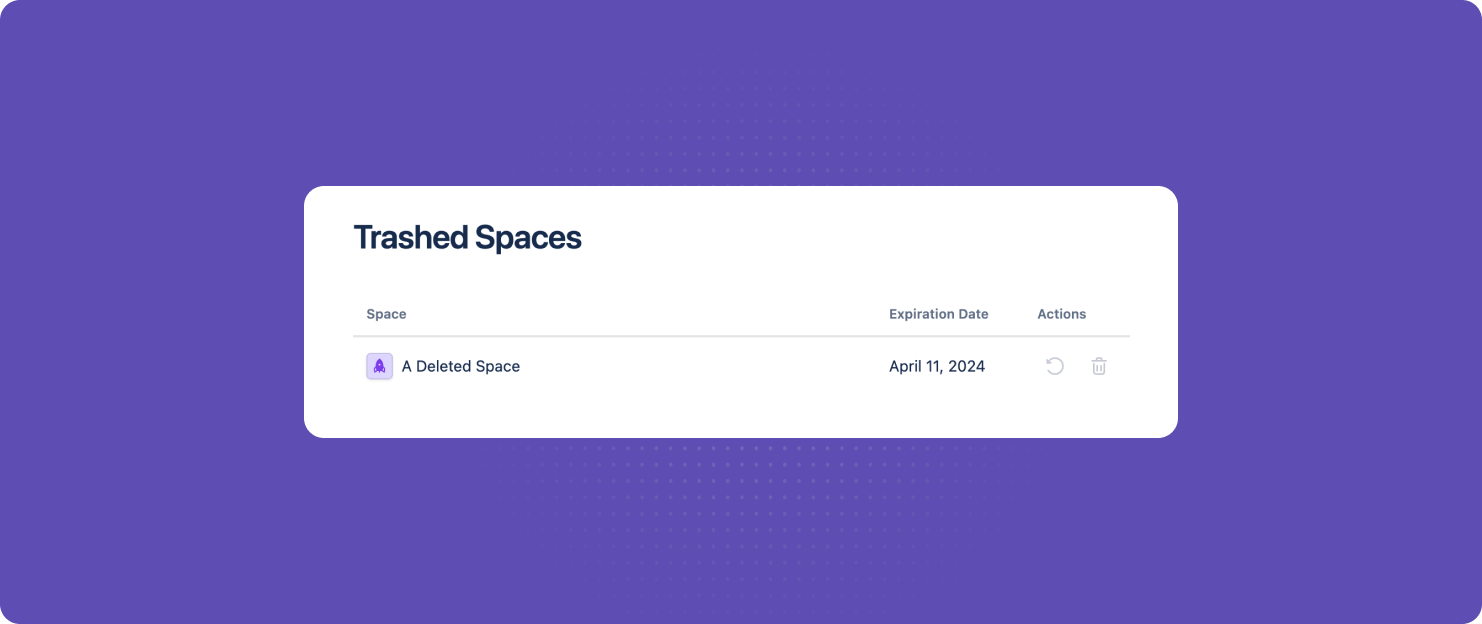
Hub admins can restore or permanently delete a workspace from the trash via the global settings in Hub:
- Click on the global ⚙ Settings in the top right of the workspaces overview page.
- In the left navigation, find the Admin section and click on Trash.
- To restore a workspace, click the Restore icon.
Frequently asked questions
Section titled “Frequently asked questions”How do workspaces relate to Jira spaces (projects)?
A workspace in Hub can be linked to one or multiple Jira projects. This gives you the flexibility to organize your teams and internal structure however you like — without exposing that setup to your customers. Your stakeholders see a clean, curated view, while your team works directly from Jira.