


Overview
Section titled “Overview”The email channel delivers published updates to people who subscribe through a portal page or widget. Enable it when you want the changelog to be a push channel as well as a destination people visit on their own.
Subscribers confirm their email address before they receive updates. This keeps the list tied to people who chose to hear from the workspace.
Enable subscriptions
Section titled “Enable subscriptions”To enable subscriptions:
- Open ⚙ Settings in the sidebar navigation of your workspace.
- Click on Email in the sidebar navigation.
- Switch on the Enable subscriptions option at the top.
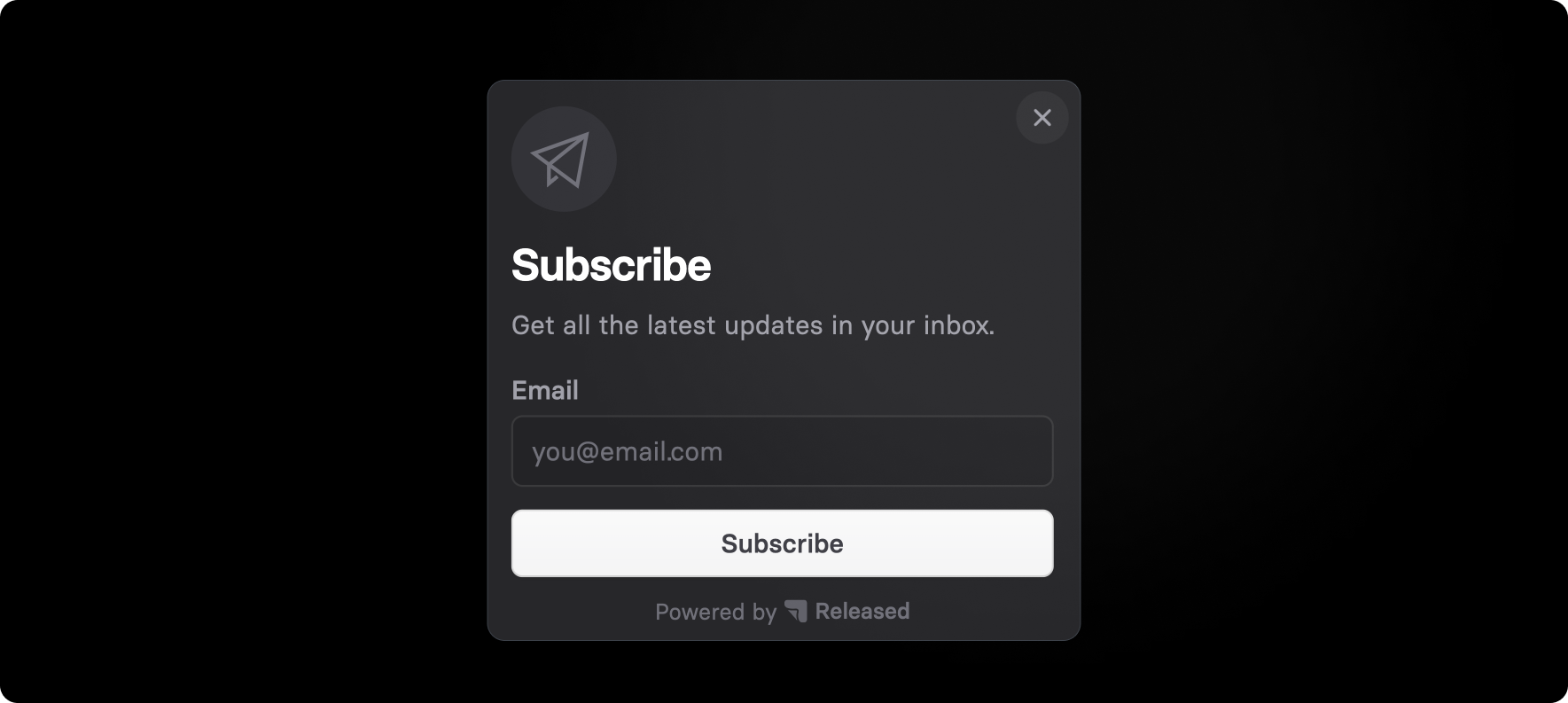
Once enabled, a subscription form appears in the changelog sections of your portal and embeds. Disable it when you want to stop collecting new subscriptions without changing the existing subscriber list.
Configuration options
Section titled “Configuration options”Enable this option to add the workspace logo to the top of each email. Use the same logo people recognise from the workspace so the email is easy to identify in an inbox.
Sender Name
Section titled “Sender Name”The sender name is what subscribers see in their inbox. Use a company or product name they recognise rather than an individual name, unless the updates are intentionally personal.
Reply-To Address
Section titled “Reply-To Address”Set a reply-to address when someone on your team should receive subscriber responses. Replies are sent to this address, so use a monitored inbox rather than a personal address that may change.
Subscribers
Section titled “Subscribers”The subscribers section lists everyone who has confirmed a subscription. Use search to find an individual when you need to check whether they are subscribed.