


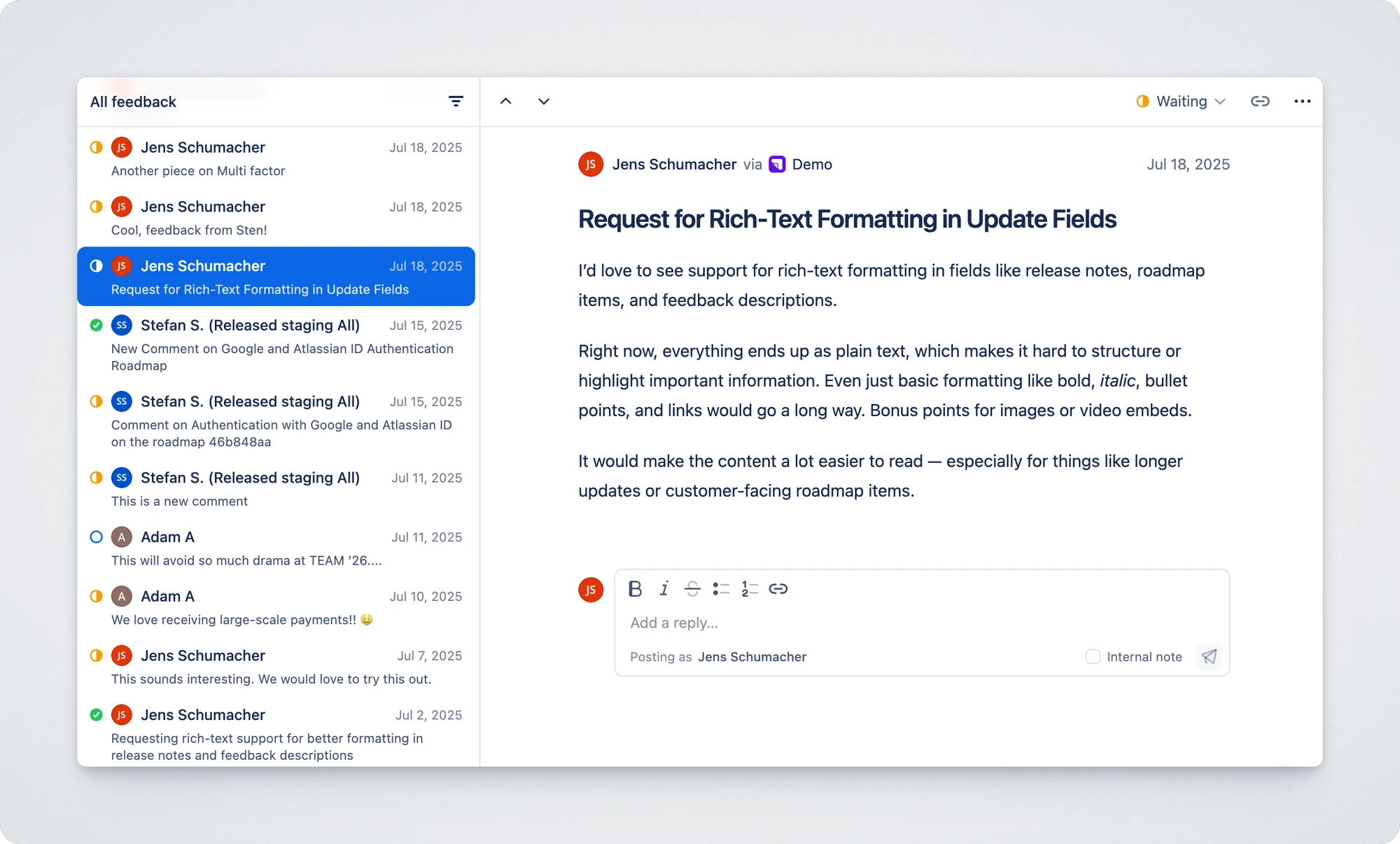
The Inbox is your central place for managing feedback from all your portals — whether it’s a comment on a roadmap item, a reply in a thread, or a suggestion submitted through a standalone form.
Each item in the Inbox represents a feedback thread. A thread is created when:
- A customer submits new feedback using the “Give feedback” form, or
- A user adds a first-level comment on a roadmap item.
All subsequent replies — whether from your team or the customer — are shown within the same thread. This keeps the conversation in one place.
Inside a thread, you’ll see:
- Who gave the feedback
- What portal it came through
- The original message
- All public replies (from your team or customers)
- Any internal notes left by your team
- The current status of the thread (e.g. Open, Waiting, Closed)
Feedback Status
Section titled “Feedback Status”Each feedback item can be marked with a status to track progress internally and externally.
Available statuses:
| Status | Description |
|---|---|
| Open | New or unaddressed feedback. |
| Waiting | Waiting for a response from the customer or stakeholder. |
| Closed | The feedback has been handled or is no longer relevant. |
Tip: You can change status from the keyboard or via the status menu on each feedback item.
Feedback Search
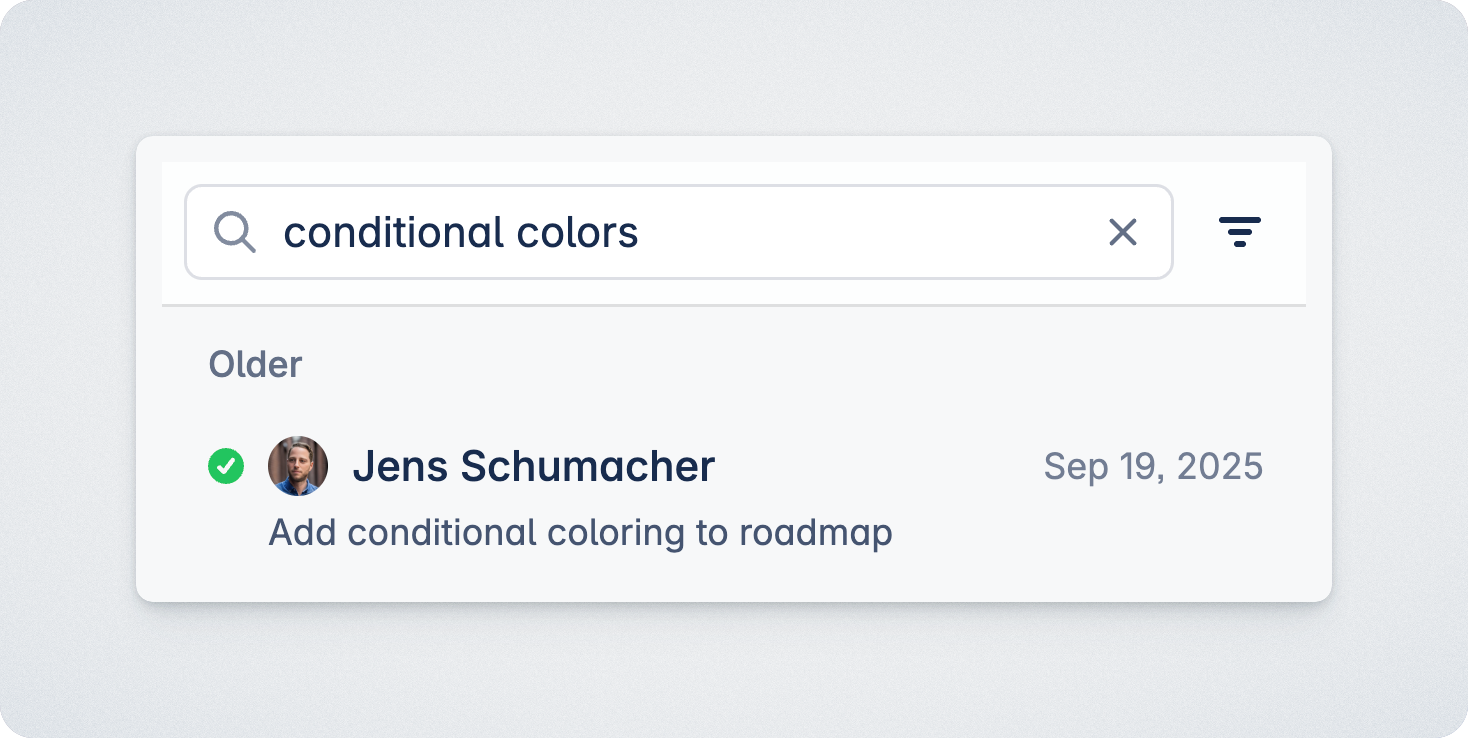
Section titled “Feedback Search”Use search to find feedback on a specific topic in your inbox. Combine search with filters to target certain workspaces or items by status.
Filtering the Inbox
Section titled “Filtering the Inbox”Use filters to focus on the feedback that matters most. You can currently filter bty the
| Property | |
|---|---|
| Workspace | Narrow down feedback by its associated workspace. |
| Status | Filter by feedback status (Open, In Progress, Closed). |
Replies
Section titled “Replies”Reply directly to the customer from the Inbox. Replies are public and visible to the customer via the portal or email.
Internal Notes
Section titled “Internal Notes”Use internal notes to collaborate with your team without notifying the customer.
- Notes are only visible to your team.
- Useful for adding context, tagging teammates, or linking to related work.
Keyboard shortcuts
Section titled “Keyboard shortcuts”| Command | Windows/Linux | macOS |
|---|---|---|
| Next item | J | J |
| Previous item | K | K |
| Reply | Enter or R | Enter or R |
| Add internal note | N | N |
| Add to work item | Shift + K | Shift + K |
| Change status | D | D |
| Close | E | E |
| Filter | Shift + F | Shift + F |