


The panel on the right hand side of the post editing view is called the staging area.
The staging area makes it a breeze to review issues before they get added to the announcement. Issues are sorted by type, so you can easily spot new features, minor improvements, and bug fixes.
Changelog filter settings
Section titled “Changelog filter settings”The changelog filter settings form the foundation of the filter that determines which issues to include in your changelog.
Access the filter settings in your workspace under ⚙ Settings > Filter.
Jira projects
Section titled “Jira projects”Your Jira project settings define which issues are included in your changelog. You can choose a single project or include issues from multiple projects in your updates.
To include issues from multiple projects
- Click the multi-select project dropdown to expand the dropdown list.
- Review the list of available projects and select the ones that you want to include in your Release Notes.
- Your selection will be automatically saved.
Version field
Section titled “Version field”Select which version field to use when filtering by version. The field defaults to the standard “Fix versions”, but allows you to specify any custom single or multi-version field.
Filter
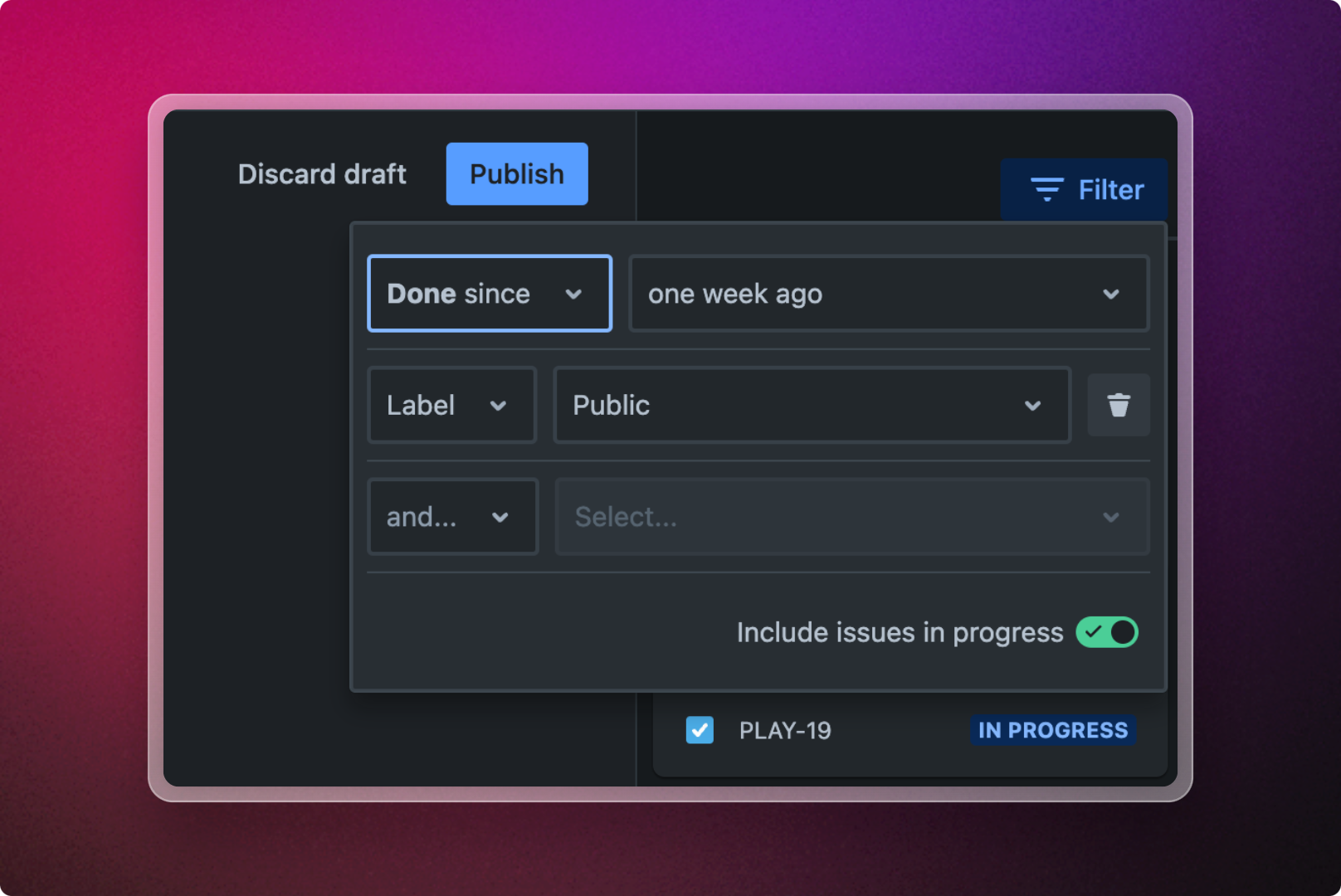
Section titled “Filter”Using the filter in a post allows you to narrow down the list of Jira work items to include in your post. The basic filter provides the following filter options
Basic Mode
Section titled “Basic Mode”| Filter | Description | |
|---|---|---|
| Done since | Include issues moved into the done status category since a specific date. This filter uses the statusCategoryChangedDate to determine the date. | |
| Version | Include issues with a specific version. | |
| Label | Include issues with a specific label. | |
| Issue type | Include specific types of issues. | |
| Jira filter | Add a Jira filter. See below for details. |
Jira filter
Section titled “Jira filter”To access more powerful filtering capabilities, you can add a Jira filter to narrow down the list of issues. Using JQL and Jira’s advanced filtering capabilities, Jira filters give you the ability to filter based on any available fields.
JQL Mode
Section titled “JQL Mode”JQL mode gives you the full power of JQL without the need to create a Jira filter. To learn more about JQL and how to use it please, refer to the following documentation.
support.atlassian.com www.atlassian.com