


Available in Advanced edition
The Slack integration lets you turn Slack messages into feedback items and reply from the Hub inbox. When you respond in Hub, your message is posted back to the original Slack thread so the conversation stays in sync.
Think of the connection as a bridge between a Slack workspace and a Hub workspace. You decide where captured feedback lands during setup, while the original Slack conversation remains the source of context and the place where replies are delivered.
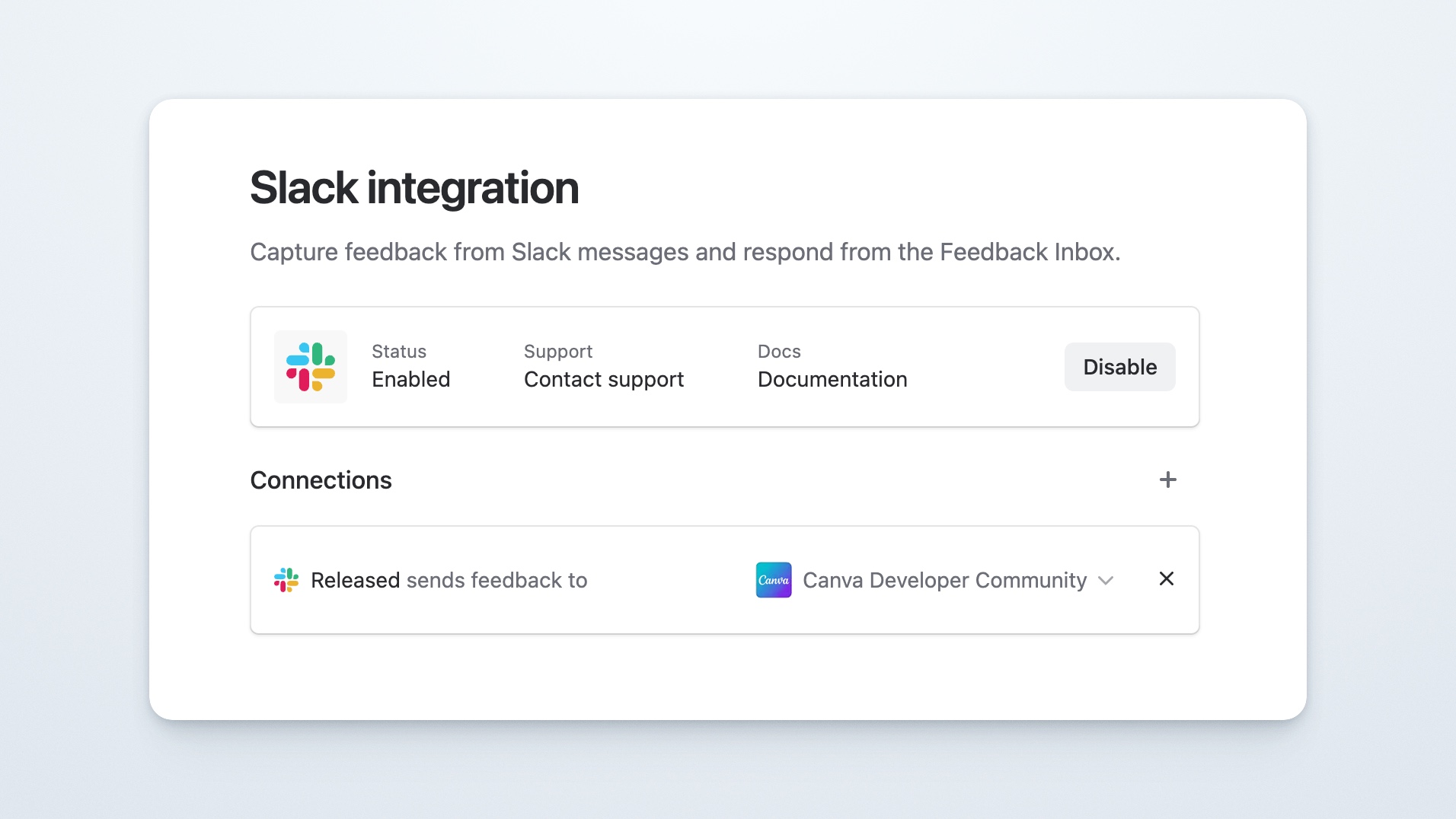
What you can do
Section titled “What you can do”Capture feedback from Slack
Section titled “Capture feedback from Slack”Turn any Slack message or thread into a feedback item in Hub.
Manage Slack conversations in your inbox
Section titled “Manage Slack conversations in your inbox”Slack feedback appears in your Hub inbox alongside feedback from other sources.
Reply from Hub
Section titled “Reply from Hub”Respond to Slack feedback directly from the inbox. Your reply is posted back to the original Slack thread.
Connect multiple workspaces
Section titled “Connect multiple workspaces”Link multiple Slack workspaces and route feedback to the appropriate Hub workspace.
Keep conversation context
Section titled “Keep conversation context”If a message is part of a thread, the thread context is preserved when the feedback is created.
Connect Slack
Section titled “Connect Slack”Connect Slack once for each Slack workspace you want to use. If you connect more than one, select the appropriate Hub workspace for each connection so feedback reaches the right inbox.
Access settings
Section titled “Access settings”Go to Global Settings → Slack (under Integrations)
Connect to Slack
Section titled “Connect to Slack”Click Connect Slack or click the + icon under Connections if another workspace is already connected.
Select your Slack workspace
Select the Slack workspace to which you want to add the integration.
Select Hub workspace
Select the Hub workspace to which you want to send feedback from Slack
You can pause feedback collection from Slack without disconnecting your workspaces.
- Go to Global Settings → Slack
- Toggle Ingestion on or off
What changes while ingestion is disabled
Section titled “What changes while ingestion is disabled”- New replies from Slack threads are not send into Hub
- Feedback submissions from Slack (via the message menu or slash commands) are disabled
- Replies sent from the Inbox are still delivered to Slack
- Existing feedback and previously captured messages remain unchanged in Hub
- The setting applies globally to all connected Slack workspaces, not per workspace
What happens when you re-enable it
Section titled “What happens when you re-enable it”- Feedback collection resumes immediately.
- Messages posted while ingestion was disabled are not backfilled; only new activity flows through
Capture feedback from Slack
Section titled “Capture feedback from Slack”Once connected, you can create feedback directly from Slack.
Using the message menu
Section titled “Using the message menu”Using the message menu
- Find the message in Slack
- Open the ⋯ menu on the message
- Select Create Hub Feedback
The message will immediately appear in your Hub inbox.
Using the slash command
Section titled “Using the slash command”Type:
/capture or /released
in a channel or thread to capture the message as feedback.
What gets captured
Section titled “What gets captured”When a Slack message is captured, Hub records:
- Message content
- Author
- Channel and Slack workspace
- Thread context (if applicable)
- Attachments
- Timestamp
A link to the original message in Slack is also included.
Viewing Slack feedback in Hub
Section titled “Viewing Slack feedback in Hub”Slack feedback appears in your Inbox and is marked with a Slack badge.
Opening the item shows:
- The original Slack message
- Author and channel
- Thread history (if applicable)
- A link to open the conversation in Slack
Responding to Slack feedback
Section titled “Responding to Slack feedback”You can reply to Slack feedback directly from the Hub inbox.
- Open the feedback item
- Write your response
- Click Send
Your message will:
- Appear in Hub
- Be posted to the original Slack thread
- Maintain the conversation context
Replies appear in Slack as messages from the Hub bot, attributed to you.
Notifications
Section titled “Notifications”How participants are notified depends on their source:
- Slack participants — Replies and updates are sent as Slack messages to everyone in the original thread.
- Non-Slack participants — Collaborators on the feedback item in Hub (excluding the original author) receive email notifications for new replies and updates.
Permissions and access
Section titled “Permissions and access”- You can only capture messages from channels you have access to in Slack
- For private channels, the Hub bot must be invited first
- Feedback from different Slack workspaces remains separate
Do edits to Slack messages sync to Hub?
No. If a Slack message is edited after being captured, the feedback item does not update.
What happens if a Slack message is deleted?
The feedback item remains in Hub, but the link back to Slack may no longer work.
Can I capture messages from private channels?
Yes, but the Hub bot must first be invited to the channel using /invite @Hub.
Where do replies appear in Slack?
Replies are always posted in the original Slack thread, not as new channel messages.
Who appears as the sender in Slack?
Messages are posted by the Hub bot and attributed to the person who replied in Hub.
Can I edit Slack messages from Hub?
No. Slack messages must be edited directly in Slack.
Can I connect multiple Slack workspaces?
Yes. Each Slack workspace can be connected and mapped to one or more Hub workspaces.
What happens if I disconnect a Slack workspace?
Existing feedback stays in Hub, but new messages can no longer be captured and replies will stop syncing. All Slack users tied to that connection become “Deleted User” in Hub. If you reconnect the workspace, those users are re-activated and threads that existed before the disconnection continue to work.
What happens if the Hub app is uninstalled from Slack?
The connection is automatically removed from Hub settings, with the same effect as disconnecting from the Hub side.