


The embed widget offers a seamless way to integrate your portal into your application or website. With a simple click on a trigger in form of a link or button, users can access a dialog box displaying the most recent announcements. Additionally, the trigger conveniently displays a badge indicating the presence of new announcements.
Installation instructions
Section titled “Installation instructions”Copy the channel ID
Section titled “Copy the channel ID”Copy the channel ID for the embed widget.
Select which modules to include
Section titled “Select which modules to include”Choose whether to embed the Changelog, the Roadmap, or both by selecting which modules to include in the embed.
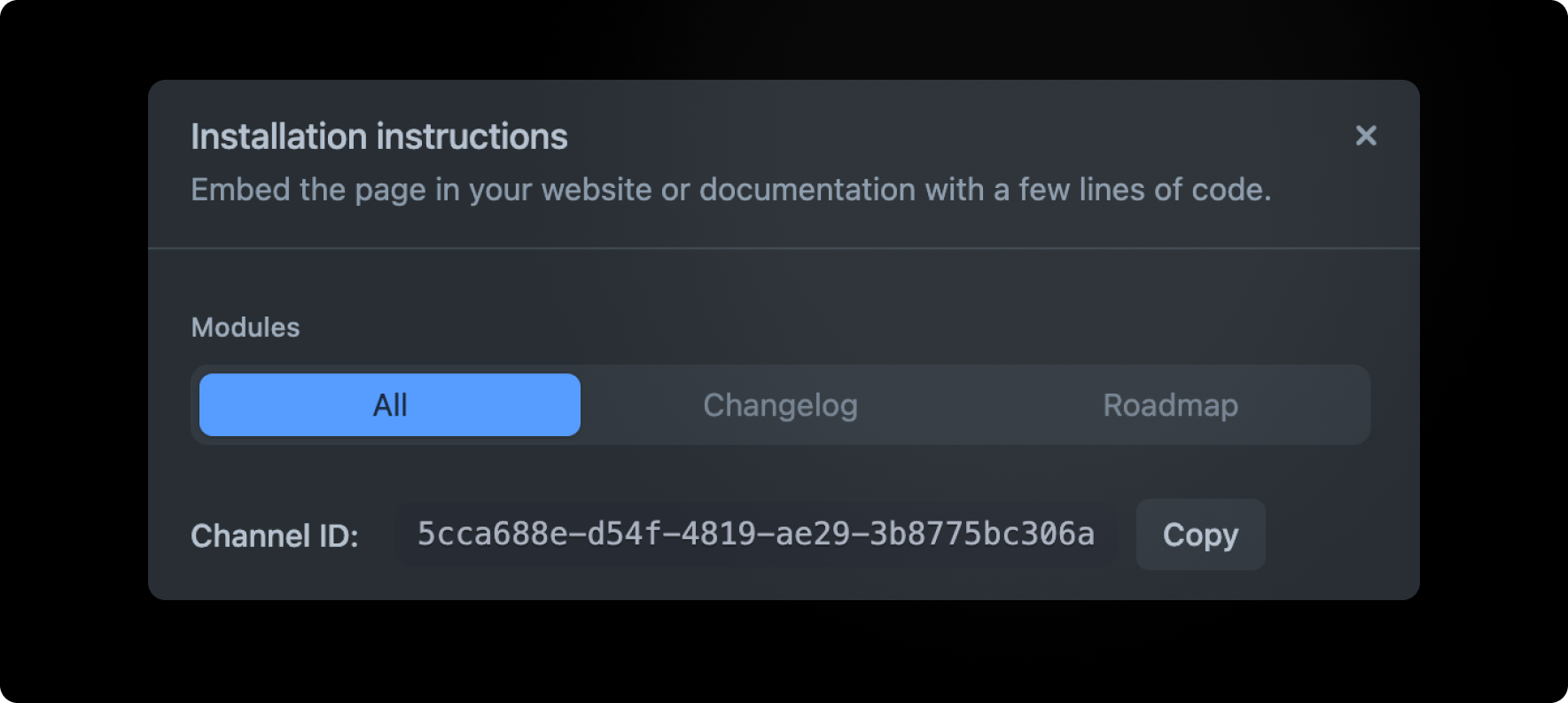
Select which modules to include Add the embed script
Section titled “Add the embed script”Add the following code snippet to the
<head>section of your site.<script src="https://embed.released.so/1/embed.js" defer></script>Add the released-widget element to your page
Section titled “Add the released-widget element to your page”Add the following code snippet to the
<body>section of your site. The widget will not be rendered inline, so it does not matter where in the body you position the element. Ensure you replace theCHANNEL_IDattribute.<released-widget channel-id="CHANNEL_ID"></released-widget>To automatically authenticate users, you can implement user verification and pass in the
auth-tokenattribute.<released-page channel-id="CHANNEL_ID" auth-token="AUTH_TOKEN"></released-page>
Optional step
Section titled “Optional step”Customize the widget (optional)
Section titled “Customize the widget (optional)”Customize the widget to match your brand and app design using the widget properties. Adjust the title and description, or change the colors according to your preferences.
Please see the documentation for a full list of configuration options.
Example
Section titled “Example”View an example of how to embed the widget on CodePen.