


Overview
Section titled “Overview”The Confluence channel publishes a release-note post to a chosen Confluence page in one click. Use it for internal review, a product knowledge base, or a shared record for teams such as support and go-to-market. It can also support a knowledge base published through tools such as Scroll Viewport or Refined.
Authentication grants Hub permission to view and update content in the Confluence site you select. The destination page is the channel’s stable location; you can change it later without recreating the connection.
Configure the channel
Section titled “Configure the channel”Authentication
Section titled “Authentication”Before you can publish content to Confluence, you will need to authenticate.
-
Click the Authenticate button.
Hub will ask for permission to view and update content in Confluence on your behalf.
-
Select the Confluence site to which you want to publish in the Authorize for site dropdown.
-
Click Accept.
Choose a destination page
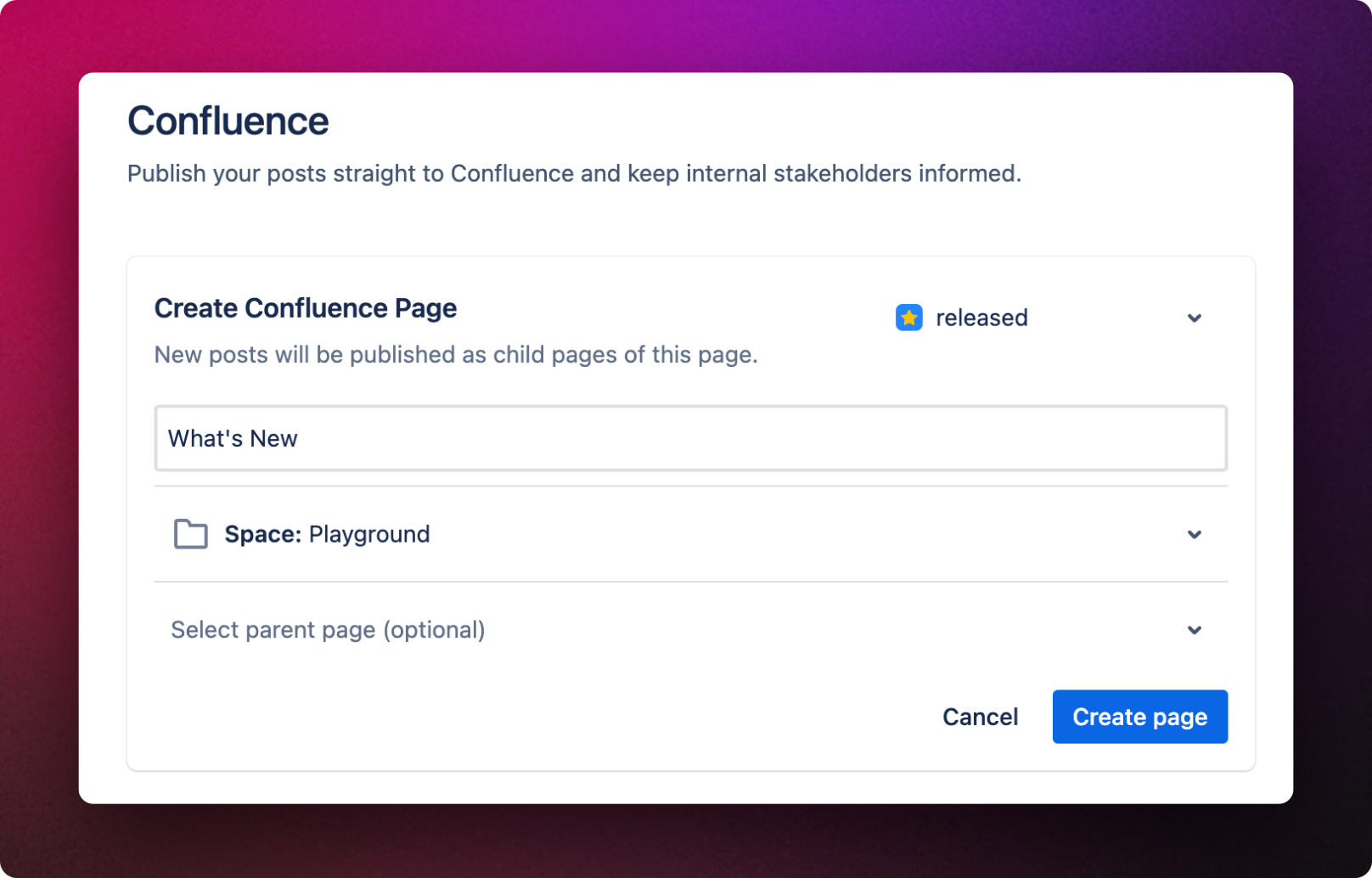
Section titled “Choose a destination page”Follow these steps to set up a Confluence page for publishing:
- Choose a Title: Decide on a title for your page.
- Select a Space: Determine the space where your page will reside.
- Specify a Parent Page: Choose a parent page under which your new page will be nested. If you skip this step, the page will default to the root of the selected space.
- Click Create page
Once the page is created, the channel is active. You can then decide whether it appears in the publish dialog and where future posts are sent:
- Enable/Disable the channel: If you prefer not to display this channel in the publish dialog, you can deactivate it.
- Modify destination page: You can easily alter the destination page where your posts are directed for publishing.

When to use Confluence
Section titled “When to use Confluence”Confluence works best when release notes need to be discoverable alongside the internal material teams already use. Common patterns include:
- Internal Team Collaboration:
- Scenario: A software development team has just completed a sprint and wants to share the updates, bug fixes, and new features with the entire organization.
- Use Case: By publishing release notes in Confluence, the team ensures that all departments, from marketing to customer support, are aligned and informed about the latest product changes.
- Training and Onboarding:
- Scenario: New employees or teams need to understand the evolution of a product or service.
- Use Case: Confluence release notes serve as a historical record, helping newcomers quickly grasp the product’s progression, key updates, and the rationale behind certain decisions.
- Feedback and Iteration:
- Scenario: Product teams want feedback on their releases to make improvements in the next iteration.
- Use Case: By sharing release notes in Confluence, teams can facilitate discussions, gather feedback, and engage with stakeholders in the comments section, leading to more informed future updates.