


The page embed enables you to integrate your portal seamlessly into your website or documentation. You can maintain your existing website header and footer, ensuring a consistent user experience across your site.
Installation instructions
Section titled “Installation instructions”Copy the channel ID
Section titled “Copy the channel ID”Copy the channel ID for the embed widget.
Select which modules to include
Section titled “Select which modules to include”Choose whether to embed the Changelog, the Roadmap, or both by selecting which modules to include in the embed.
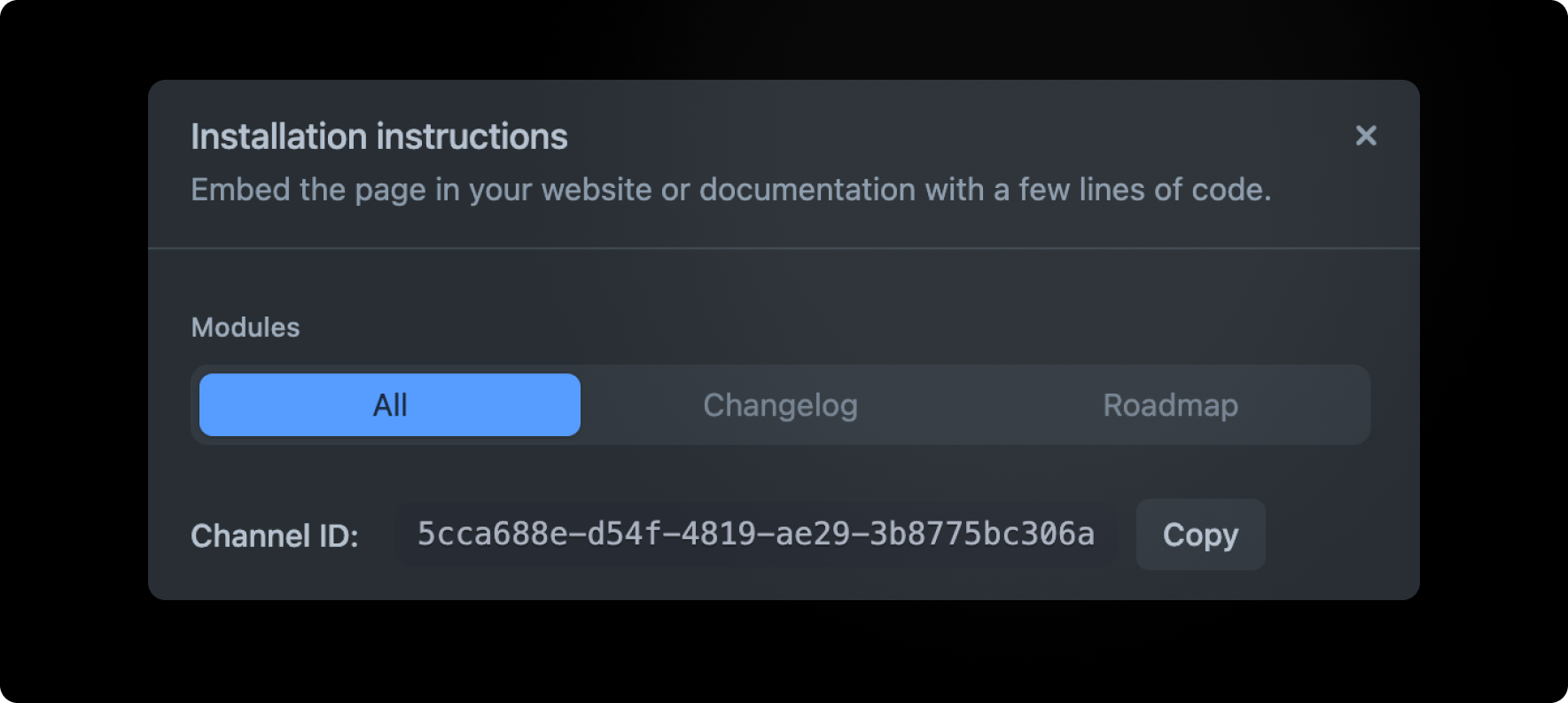
Select which modules to include Add the embed script
Section titled “Add the embed script”Add the following code snippet to the
<head>section of your site.<script src="https://embed.released.so/1/embed.js" defer></script>Add the released-page element to your page
Section titled “Add the released-page element to your page”Add the following code snippet to the
<body>section of your site. Unlike the widget, the page content renders where you position the element. Ensure you replace theCHANNEL_IDattribute.<released-page channel-id="CHANNEL_ID"></released-page>To automatically authenticate users, you can implement user verification and pass in the
auth-tokenattribute.<released-page channel-id="CHANNEL_ID" auth-token="AUTH_TOKEN"></released-page>
Optional steps
Section titled “Optional steps”Add a notification badge
Section titled “Add a notification badge”To notify users about the availability of a new post, you can enhance the user experience by incorporating a notification badge on the link or button leading to the embedded page. This badge functions similarly to the notification badge found in the widget.
Add the following code snippet to the
<body>section of your site where you want the badge to render.<released-badge channel-id="CHANNEL_ID"></released-badge>Customize the page
Section titled “Customize the page”Customize the page to match your brand and app design using the page properties. Adjust the title and description, or change the colors according to your preferences.
Please see the documentation for a full list of configuration options.
Example
Section titled “Example”View an example of how to embed the page on CodePen.