


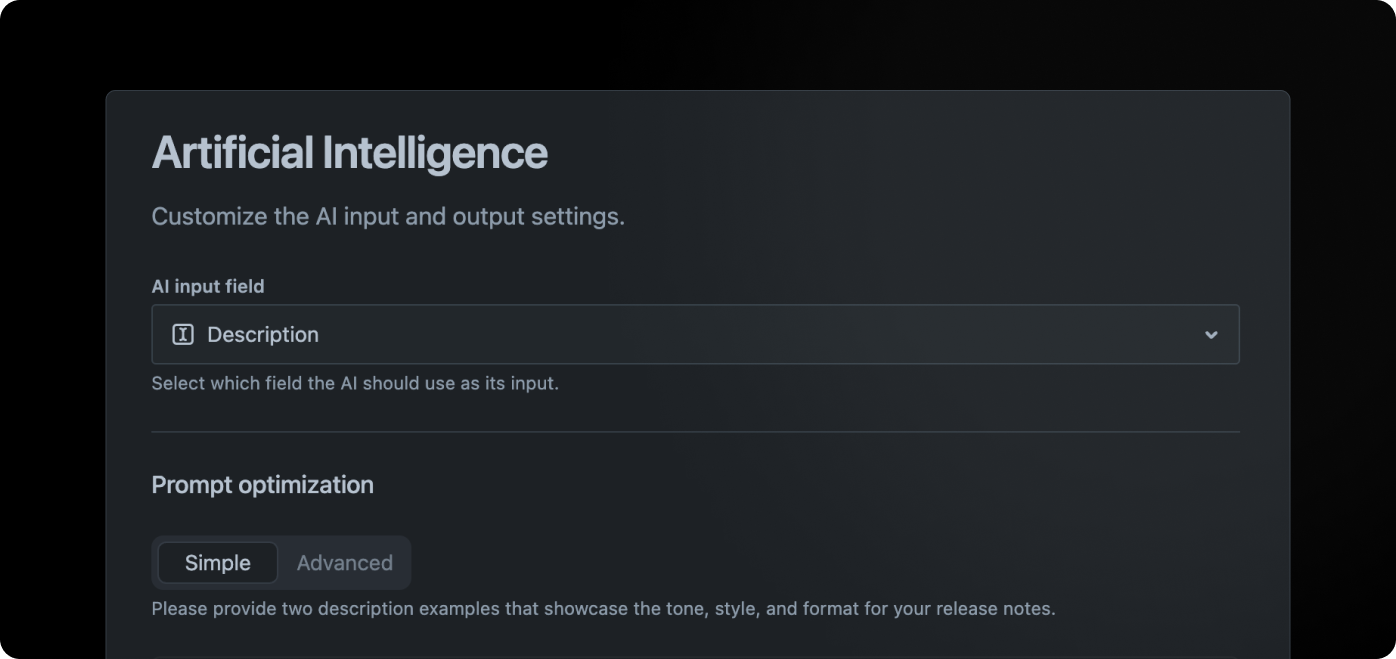
AI settings give Hub the context it needs to turn Jira work into a useful public description. Configure the Jira field that contains the best source material, then use examples and instructions to guide tone, length, and emphasis.
The goal is a better first draft, not fully automatic publishing. Review generated descriptions before you publish them, especially when an issue contains technical detail, sensitive information, or instructions intended only for your team.
Available settings
Section titled “Available settings”Navigate to Workspace > Settings > Artificial intelligence to access the AI settings.
AI input field
Section titled “AI input field”By default, Hub uses the issue summary and description to create the public description. Choose another paragraph field when your team keeps customer-facing context somewhere else and the normal description is mostly technical notes.
However, if your team uses the description field to capture technical details or just generally content that can not be used to generate a meaningful description, you have the option to select a different field as input.
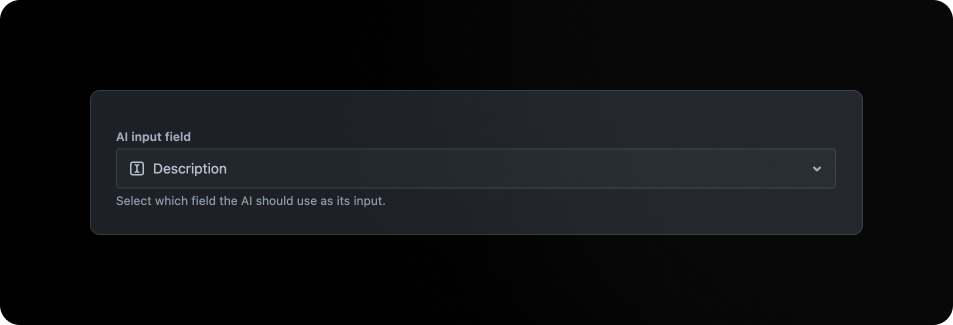
The AI input field dropdown contains all fields of type “Paragraph”. Please make sure that the field is configured for all issue types you intend to include in your update.
If the field selected for the AI input field is not available on a given issue, the AI will fallback to the standard description field as input.
Prompt optimisation
Section titled “Prompt optimisation”Choose the mode that gives your team enough control without making every release-note change a prompt-engineering task:
- Simple - The simplest way to optimize your prompt. Provide two description examples that showcase the tone, style, and format for your release notes. The examples should describe one feature. Refer to the defaults as a guide.
- Advanced - For people experienced with prompt engineering who need direct control over the instructions used to generate a description.
Issue-specific prompts
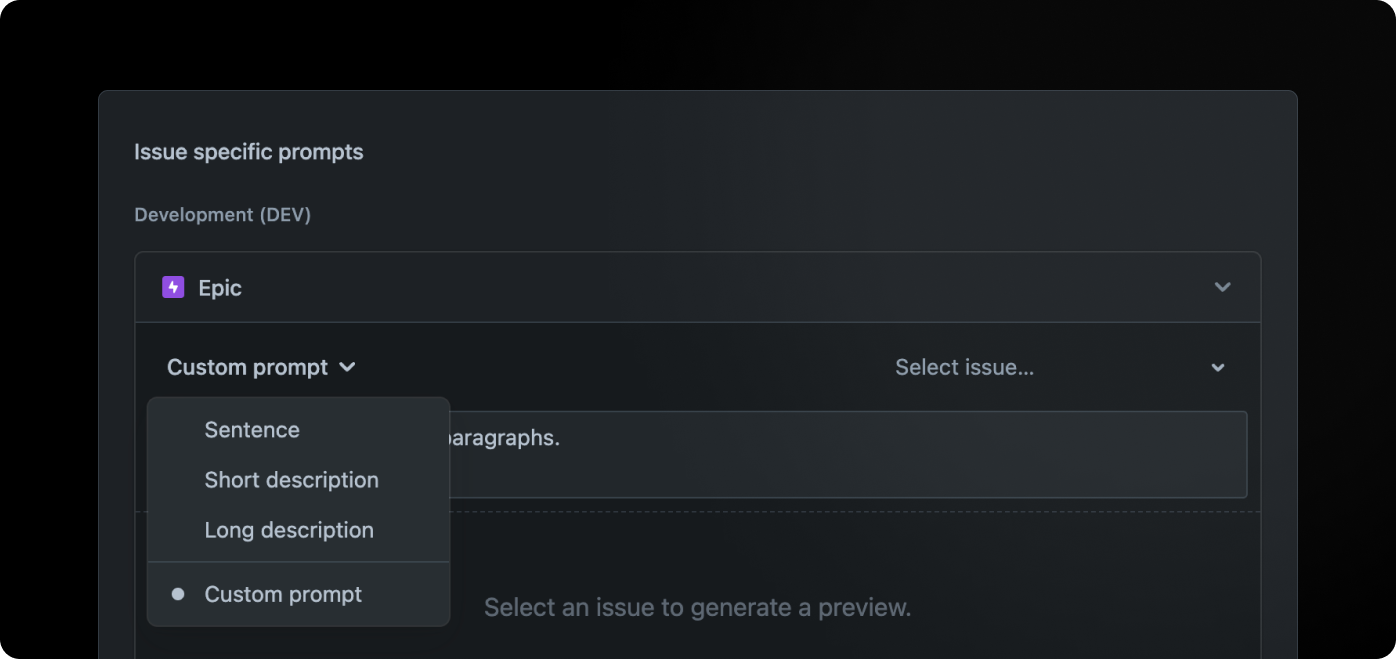
Section titled “Issue-specific prompts”Enhance your prompt by incorporating issue-specific instructions, customizing the desired response length, adjusting the tone of voice, or requesting the AI to provide additional context as needed.
Issue-specific prompts let you vary instructions when one type of work needs a different treatment. For example, a feature can use a warmer explanatory tone while a security fix stays concise and factual.
Format
Section titled “Format”The formatting option empowers you to tailor the length of the generated description. For instance, bug-fixes usually warrant succinct, one-sentence explanations, while major features can be elaborated upon with a couple of paragraphs.
Custom prompt
Section titled “Custom prompt”With the custom prompt option, you can go beyond the pre-configured choices to personalize formatting and tone of voice according to your preferences. Additionally, feel free to include any extra instructions you’d like.
Write a useful base prompt
Section titled “Write a useful base prompt”Describe the outcome you want, give representative examples, and keep instructions concrete. Short guidance is easier to maintain than a long list of prohibitions; use the table below to turn broad style preferences into instructions the model can apply.
| Tip | ✅ Good | 🚫 Bad |
|---|---|---|
| Utilize custom prompts as instructional tools. Focus on guiding language. | Utilize metaphors to clarify complex concepts. | Please incorporate metaphors. |
| Keep in mind that language models can struggle with negations. To enhance results, it’s advisable to rephrase custom prompts | Avoid details that aren’t relevant. | Do not include details that aren’t relevant. |
| Use examples | Use the following examples as a guide for writing style and tone of voice: | No example provides |
| Express custom tones of voice as adjectives. | Motivational, philosophical, and cheeky. | Injecting humor, projecting authority, and emulating Shakespearean style. |
| Incorporating conjunctions (such as ‘and’) is acceptable, although brevity in your tone is preferable for optimal results. | Lively and engaging. | Example is: lively, engaging, concise, inspirational, and authentically genuine. |