## Overview
Whether you want to share your post for review, publish it to your knowledge base through a third party app like [Scroll Viewport](https://marketplace.atlassian.com/apps/1211636) or [Refined](https://marketplace.atlassian.com/apps/1221322/refined-for-confluence-cloud?hosting=cloud\&tab=overview), or give your go-to-market teams a heads up. Publishing to Confluence makes collaboration a breeze.
## Basics
### Authentication
Before you can publish content to Confluence, you will need to authenticate.
1. Click the **Authenticate** button.
Released will ask for permission to view and update content in Confluence on your behalf.
2. Select the Confluence site to which you want to publish in the **Authorize for site** dropdown.
3. Click **Accept.**
### Create a Confluence page
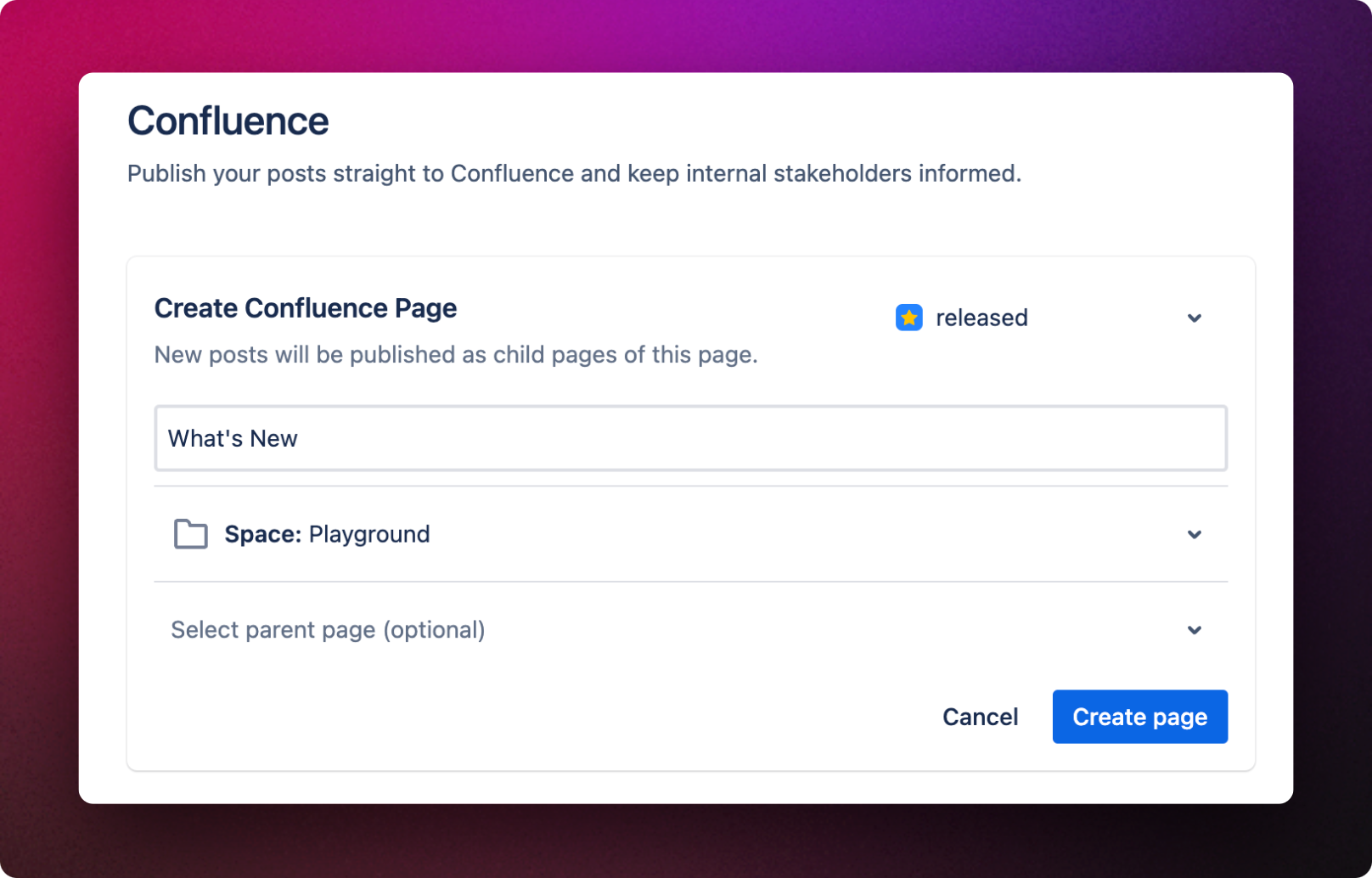
Follow these steps to set up a Confluence page for publishing:
1. **Choose a Title**: Decide on a title for your page.
2. **Select a Space**: Determine the space where your page will reside.
3. **Specify a Parent Page**: Choose a parent page under which your new page will be nested. If you skip this step, the page will default to the root of the selected space.
4. Click **Create page**
Once your page is successfully created, your channel is now active. Moving forward, you have a couple of options:
1. **Enable/Disable the channel**: If you prefer not to display this channel in the publish dialog, you can deactivate it.
2. **Modify destination page**: You can easily alter the destination page where your posts are directed for publishing.
Confluence destination page.
***
### Use-cases
The use-cases for internal updates are endless, but here are a few to get you started.
1. **Internal Team Collaboration**:
* **Scenario**: A software development team has just completed a sprint and wants to share the updates, bug fixes, and new features with the entire organization.
* **Use Case**: By publishing release notes in Confluence, the team ensures that all departments, from marketing to customer support, are aligned and informed about the latest product changes.
2. **Training and Onboarding**:
* **Scenario**: New employees or teams need to understand the evolution of a product or service.
* **Use Case**: Confluence release notes serve as a historical record, helping newcomers quickly grasp the product's progression, key updates, and the rationale behind certain decisions.
3. **Feedback and Iteration**:
* **Scenario**: Product teams want feedback on their releases to make improvements in the next iteration.
* **Use Case**: By sharing release notes in Confluence, teams can facilitate discussions, gather feedback, and engage with stakeholders in the comments section, leading to more informed future updates.